Modeling How-To's > Modeling Downtimes > Modeling Shifts or Activity Schedules

Modeling Shifts or Activity Schedules

An activity is only scheduled to work on entities between certain times.


How To Video


The model used for this example, as well as all of the modeling "how-to" examples, can be found in the ProModel Solutions Café (http://www.promodel.com/solutionscafe/howto/). A video demonstrating this solution can be found here.

Solution

  1. In the activity Properties dialog, click on the Calendar button.
  2. Select Edit to open the Calendar Editor and then select the Shift tab at the top to define a shift.
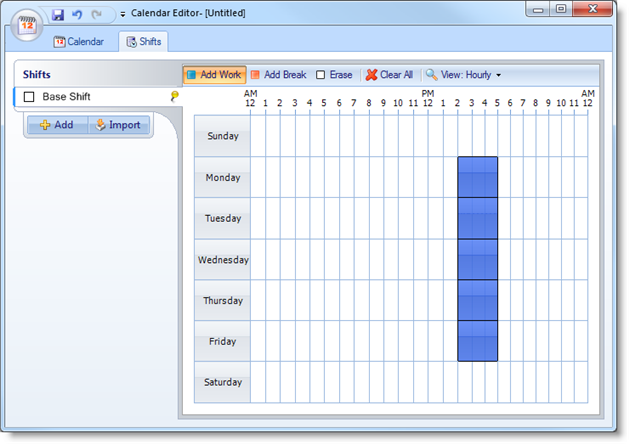
  3. Left drag over the time and day region for the work period.
  4. Add Breaks by selecting Add Break at the top of the window and dragging over portions of the work period when breaks are to occur.
  5. Save the Shift definition and close the Calendar editor.
  6. Return to the Calendar dialog and enter your defined Calendar file in the Calendar selection field.
Example

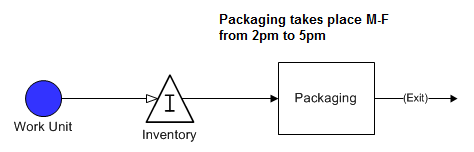
A packaging activity is performed only between the hours of 2 to 5 p.m. Monday through Friday. Goods waiting to be packaged simply accumulate until the packaging activity comes on line.
Solution

In the Calendar editor define the shift period from 2 to 5 p.m. Monday through Friday.


© 2014 ProModel Corporation • 556 East Technology Avenue • Orem, UT 84097 • Support: 888-776-6633 • www.promodel.com